
Print Guide For Xerox Versalink C8000 Laser Printer
- Arnolfini Room 3AF008
How to Print
Load Your Paper
The printer has 2 trays and a manual feed (bypass) tray 5.
When you place paper in one of the trays, the printer display will ask the type of paper and the size. Enter it in using the buttons on the touch screen display.
When you place paper in one of the trays, the printer display will ask the type of paper and the size. Enter it in using the buttons on the touch screen display.
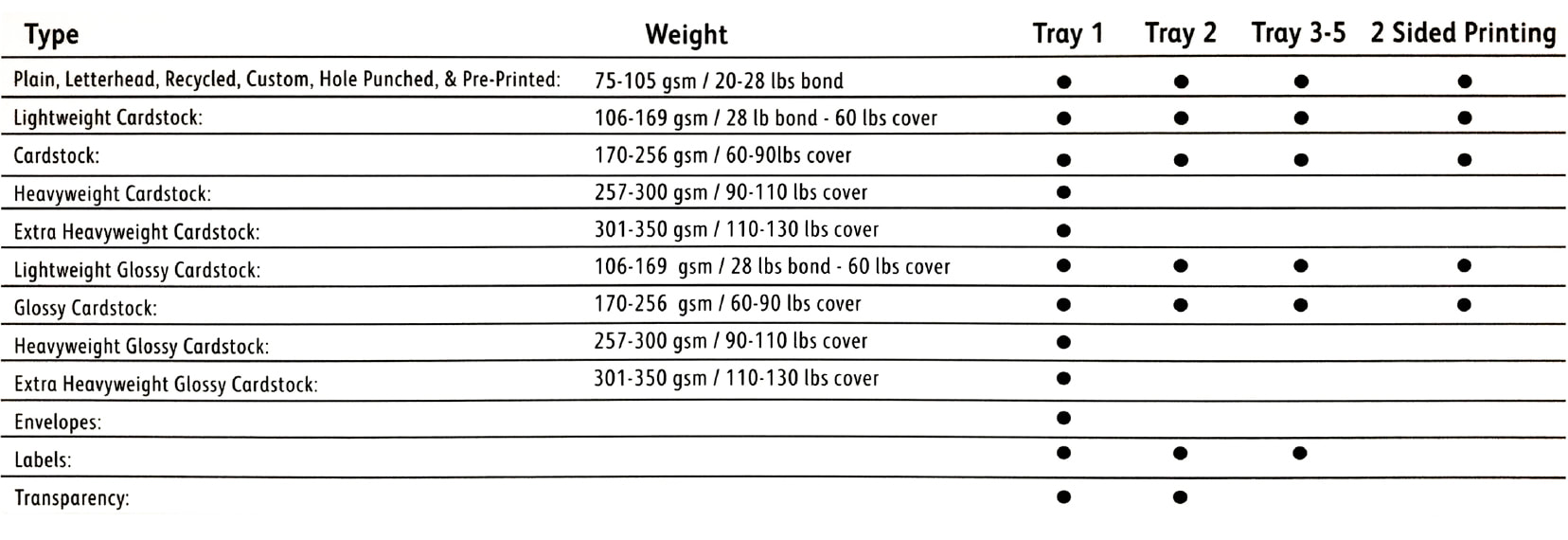
Please see the chart for which paper weights the trays can take.
Double sided:
Paper weights of 60 - 256gsm auto duplex (prints 2 sided/doublesided).
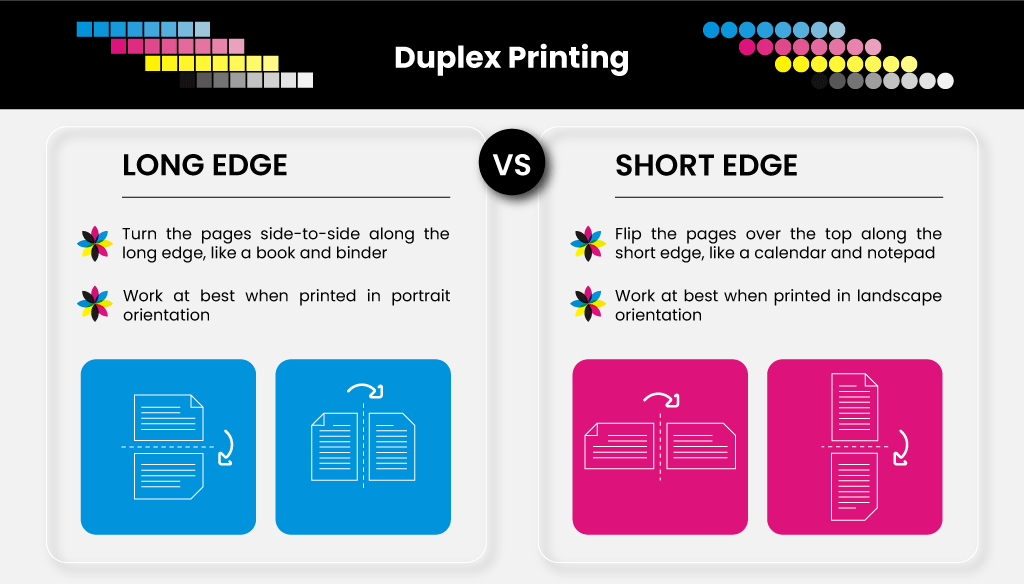
Heavier paper - 256-300gsm manual duplex (Print the even pages then flip manually. Portrait, short edge - Landscape, long edge. Reload the paper, then print the odd pages).
Paper weights of 60 - 256gsm auto duplex (prints 2 sided/doublesided).
Heavier paper - 256-300gsm manual duplex (Print the even pages then flip manually. Portrait, short edge - Landscape, long edge. Reload the paper, then print the odd pages).
Print To Xerox Versalink C8000
You can print from any application.
Acrobat Example:
1. Go to file menu - choose Print.
2. Select the printer - C8000.
3. Page Setup Button - Format for C8000. Paper size, A4, A3, SRA3
4. Printer Button - Click the layout menu, choose Paper Feed - Select the tray in which you have loaded your paper.
5. Click on the paper feed menu, choose Xerox Features
6. Print Quality - Enhanced
7. 2-sided printing - Choose 1 or 2-sided or 2-sided flip on short edge (Landscape print).
8. Paper - Other Type - choose your paper type from the list.
9. Print
Acrobat Example:
1. Go to file menu - choose Print.
2. Select the printer - C8000.
3. Page Setup Button - Format for C8000. Paper size, A4, A3, SRA3
4. Printer Button - Click the layout menu, choose Paper Feed - Select the tray in which you have loaded your paper.
5. Click on the paper feed menu, choose Xerox Features
6. Print Quality - Enhanced
7. 2-sided printing - Choose 1 or 2-sided or 2-sided flip on short edge (Landscape print).
8. Paper - Other Type - choose your paper type from the list.
9. Print
Photoshop Example:
1. Go to file menu - choose Print.
2. Printer Setup - Select the printer - C8000.
3. Print Settings - Printer - C8000.
4. Paper size, A4, A3, SRA3
5. Click the layout menu, choose Paper Feed - Select the tray in which you have loaded your paper.
6. Click on the paper feed menu, choose Xerox Features
7. Print Quality - Enhanced
8. 2-sided printing - Choose 1 or 2-sided or 2-sided flip on short edge (Landscape print).
9. Paper - Other Type - choose your paper type from the list.
10. Print
1. Go to file menu - choose Print.
2. Printer Setup - Select the printer - C8000.
3. Print Settings - Printer - C8000.
4. Paper size, A4, A3, SRA3
5. Click the layout menu, choose Paper Feed - Select the tray in which you have loaded your paper.
6. Click on the paper feed menu, choose Xerox Features
7. Print Quality - Enhanced
8. 2-sided printing - Choose 1 or 2-sided or 2-sided flip on short edge (Landscape print).
9. Paper - Other Type - choose your paper type from the list.
10. Print
InDesign Example:
1. Go to file menu - choose Print.
2. Printer - Select the printer - C8000.
3. Setup - Paper size, A4, A3, SRA3.
4. Page Position - Centered.
5. Colour Management - Let Postcript Printer Determine Colours.
6. Printer Button (at the bottom) - Printer - C8000.
7. Show Details.
8. Untick 2-sided printing, or leave it ticked.
9. Click the layout menu, choose Paper Feed - Select the tray in which you have loaded your paper.
10. Click on the paper feed menu, choose Xerox Features
11. Print Quality - Enhanced.
12. 2-sided printing - Choose 1 or 2-sided or 2-sided flip on short edge (Landscape print).
13. Paper - Other Type - choose your paper type from the list.
14. Print
1. Go to file menu - choose Print.
2. Printer - Select the printer - C8000.
3. Setup - Paper size, A4, A3, SRA3.
4. Page Position - Centered.
5. Colour Management - Let Postcript Printer Determine Colours.
6. Printer Button (at the bottom) - Printer - C8000.
7. Show Details.
8. Untick 2-sided printing, or leave it ticked.
9. Click the layout menu, choose Paper Feed - Select the tray in which you have loaded your paper.
10. Click on the paper feed menu, choose Xerox Features
11. Print Quality - Enhanced.
12. 2-sided printing - Choose 1 or 2-sided or 2-sided flip on short edge (Landscape print).
13. Paper - Other Type - choose your paper type from the list.
14. Print
Ordering Consumables & Fault Reporting
Inks & Consumables
When the machine is runs out of toner or the waste tank is full you can ask Colum Leith if there are any toners in the office or call or email the Digital Print Bureau at Bower Ashton to reorder. The printer will order consumables by itself, it will display any other consumables which need replacing on the touch screen panel.
Faults and Paper Jams
The Printer will normally display the fault/jam on the touch screen panel, you can follow these instructions to clear the fault/jam.
If the fault does not go away then you can report it to us at the Digital Print Bureau and we will try to fix the fault or we will call out a Xerox engineer.
[email protected]
0117 328 4789
When the machine is runs out of toner or the waste tank is full you can ask Colum Leith if there are any toners in the office or call or email the Digital Print Bureau at Bower Ashton to reorder. The printer will order consumables by itself, it will display any other consumables which need replacing on the touch screen panel.
Faults and Paper Jams
The Printer will normally display the fault/jam on the touch screen panel, you can follow these instructions to clear the fault/jam.
If the fault does not go away then you can report it to us at the Digital Print Bureau and we will try to fix the fault or we will call out a Xerox engineer.
[email protected]
0117 328 4789
If you need help with file formatting, saving your files, scanning or resizing,
please contact the Digital Design Studios DDS.
DDS Virtual Support
[email protected]
please contact the Digital Design Studios DDS.
DDS Virtual Support
[email protected]